What Is a WordPress Page (Post Type)?
A page is one of the two main content types built into WordPress, alongside posts. Pages hold standalone content such as your About and Contact pages. Unlike posts, pages are excluded from the reverse-chronological blog feed and post archives by default; visitors typically reach them through your site’s navigation menu.
More About Pages
A page is one of the built-in post types in WordPress: a container for standalone content like your About or Contact page rather than dated blog entries. WordPress leaves pages out of the blog feed and archives by default. A page still carries a publication date; the date just doesn't decide where the page appears on your site. Instead, pages are typically the items visitors reach from your navigation menu.
Depending on the site you're building, you'll likely create pages such as “About Us,” “Contact Us,” and “Frequently Asked Questions.” Recurring, dated content works differently: blog articles and news updates are posts, and products added through an e-commerce plugin belong to a custom post type of their own.
Pages vs. posts
The difference isn't how often you edit something. A pricing page can change weekly and stay a page, and a post may never be touched after publication. What separates the two types is how WordPress organizes them:
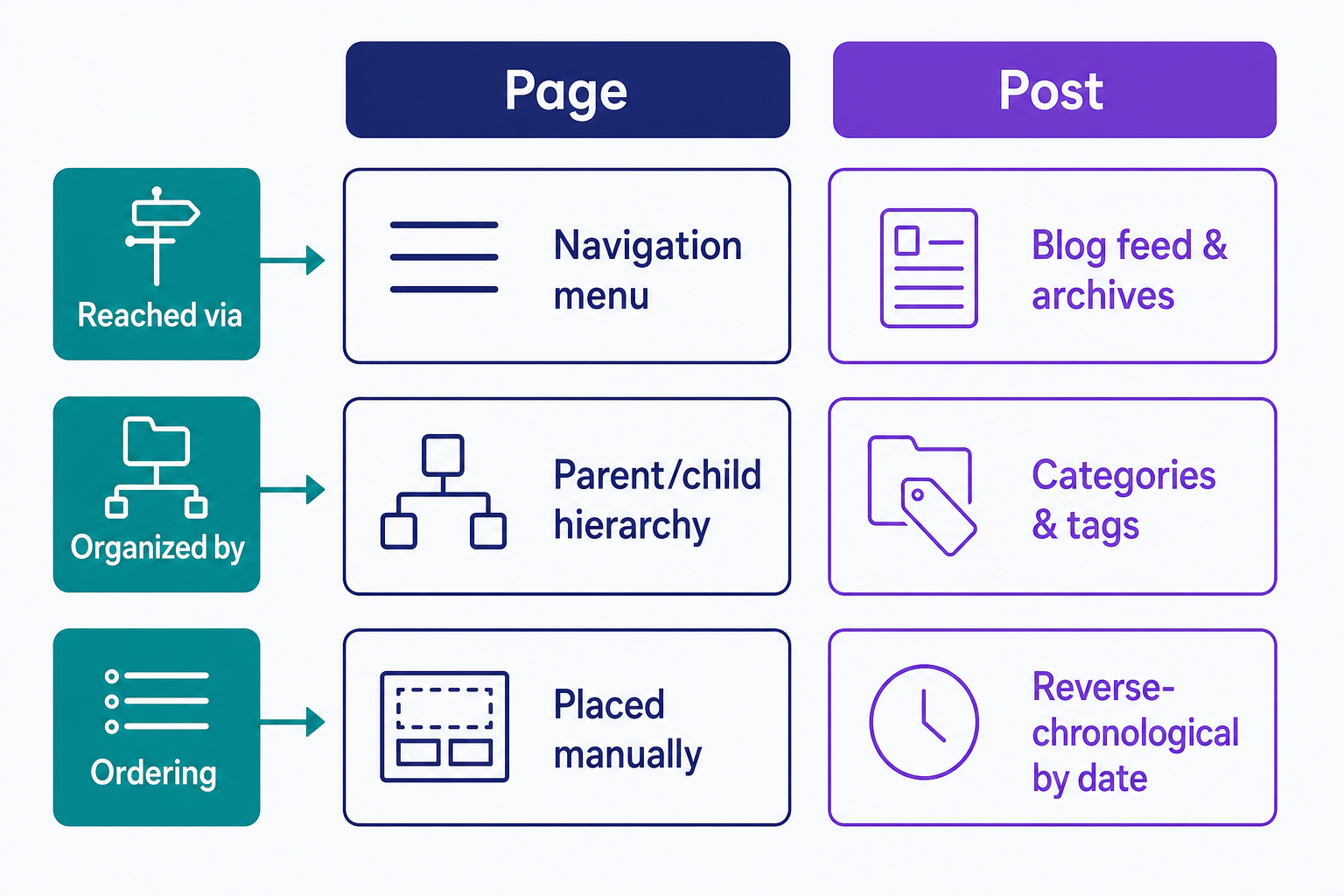
- Posts flow through the blog. Each post appears in your feed and archives in reverse-chronological order. Pages are excluded from that stream by default; their publication dates don't determine where they appear on the site.
- Posts are organized with categories and tags. Pages use hierarchy instead: any page can nest under a parent page, such as a Team page under About.
- Pages fill your navigation menu. Posts reach readers through the blog itself and the category, tag, and date archives WordPress creates automatically.
Choosing the right type matters. Put an article in a page and it never shows up in your blog; put your contact details in a post and they sink down the feed as you publish more.
Where pages fit among post types
WordPress stores content as post types, and page is one of the two main types built into every site, alongside post. Custom post types extend the set when a site needs something more specific: portfolio projects and testimonials are common examples, and plugins register their own, like WooCommerce products or real estate listings. That's why a product listing isn't a “page” in WordPress terms, even though it looks like one in the browser.
When to use a page instead of a post
Use a page for standalone, evergreen content people should find from your menu: your About page, contact details, privacy policy, or a landing page. Use a post for dated, recurring content that belongs in your blog feed: articles, news, updates. A quick test: “Our story” is a page, while “What we shipped in July 2026” is a post. If a reader would ask when it was written, make it a post.
Creating and managing pages
To create a page, go to your WordPress dashboard, open Pages, click Add New Page, give the page a title, add your content, and hit Publish. From the editor's settings sidebar you can also set a parent page or apply a different page template to change the layout. For menus, organization, and editing tips, our beginner's guide to WordPress pages covers the full workflow.
Using a page as your homepage
Your homepage isn't automatically a page. Until you assign one, your site shows your latest posts or whatever the active theme's template puts there. If a block theme provides a Front Page template, you edit that template in the Site Editor; it isn't an item in your Pages list. To use a page as your homepage, go to Settings → Reading and set “Your homepage displays” to “A static page.” You can also set a separate page to automatically display your posts. The static front page entry covers that setup in detail.
Frequently Asked Questions
- Not directly; WordPress core has no conversion control. Copying all blocks into a new page recreates the content but not its URL, date, author, or other metadata. Keep the original URL working with a redirect before deleting it, or use a post-type conversion plugin to switch the type in place.
- Not by default; categories and tags apply to posts. Pages are organized with parent pages and menus instead, and page URLs nest to match, like yoursite.com/about/team/. If you need categories on pages, a plugin can add them.
- Yes. Every page records a publication date, and you can schedule a page to publish in the future or even backdate it, just like a post. WordPress simply doesn't use that date to organize pages the way it orders posts in the blog feed.
Powerful WordPress Hosting
Reliable, lightning-fast hosting solutions specifically optimized for WordPress. Find the perfect plan for you by clicking below.
WordPress Hosting Plans