
A WordPress page isn’t another name for a blog post. It’s static, standalone content that lives outside your blog’s chronological stream — think About, Contact, or Privacy Policy. Unlike posts, pages aren’t organized by dates or categories, don’t appear in your RSS feed, and can be nested into parent/child hierarchies to form your site’s structure.
If you’re new to WordPress, the pages-vs-posts split can be confusing at first. Don’t worry: pages are one of the simplest parts of the platform to learn. This guide covers the full lifecycle of a WordPress page: creating it, organizing it, adding it to your menu, setting it as your homepage, and deleting it safely.
What are pages in WordPress?
Pages are WordPress’s home for content that isn’t time-dependent — the timeless parts of your site, as opposed to dated blog posts. Nearly every website needs a few static pages, and WordPress enables you to create as many pages as you need. Pages are distinct from posts in a few main ways:
- Pages are designed for static content. This means they’re for content that rarely changes over time, like About Us and Contact Us sections.
- By default, pages do not allow comments. Pages are a place to share information rather than encourage social engagement.
- You can use a page to hold and display posts. While you can display posts on a page, you can’t do the opposite.
Those are the headline differences, but WordPress.org’s documentation draws a few more distinctions worth knowing. Pages don’t take categories or tags by default, aren’t included in your site’s RSS or Atom feeds, and are stored in your database rather than as files. Here’s the full breakdown:
| Pages | Posts | |
|---|---|---|
| Best for | Timeless content (About, Contact) | Timely articles and updates |
| Chronology | Live outside the blog’s chronological view | Appear in reverse chronological order |
| Categories and tags | None by default | Organized by categories and tags |
| RSS/Atom feeds | Not included | Included |
| Comments | Off by default | On by default |
| Hierarchy | Can nest as parent pages and subpages | No parent/child structure |
| Templates | Can use different page templates | Use the theme’s standard templates |
| Homepage use | Can be set as a static front page | Shown on the default front page |
Understanding the difference between pages and posts in WordPress is just the beginning, of course. Next, here’s how to create, organize, and remove those pages.
How to manage WordPress pages
WordPress makes it easy to manage your web pages. Out of the box, the platform comes with all the tools you need to create, edit, organize, and remove any pages on your site — plus add them to your menu and even make one your homepage. Let’s address these tasks one by one.
How to create a page in WordPress
To create a page in WordPress:
- Log in to your WordPress admin dashboard.
- From the left menu, select Pages, then click Add New.
- Add your content with blocks.
- Click Publish (or save a draft to finish later).
Let’s walk through those steps. First, select Pages and then click on Add New:
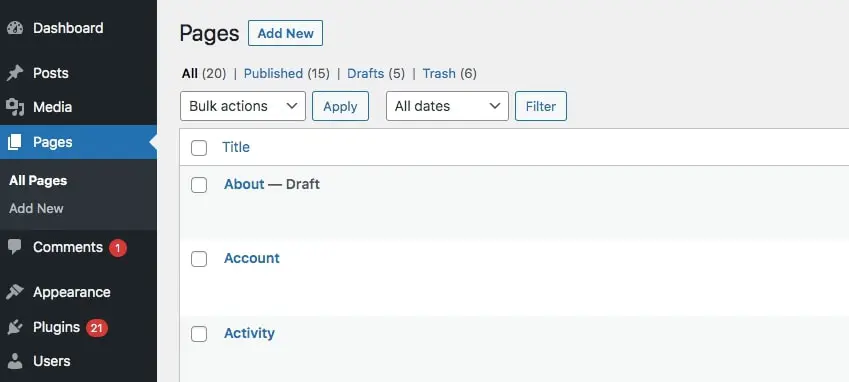
From here, you can start creating your page. Just add whatever content you’d like by inserting blocks. For instance, you can type text into a paragraph block or add photos with an image block:
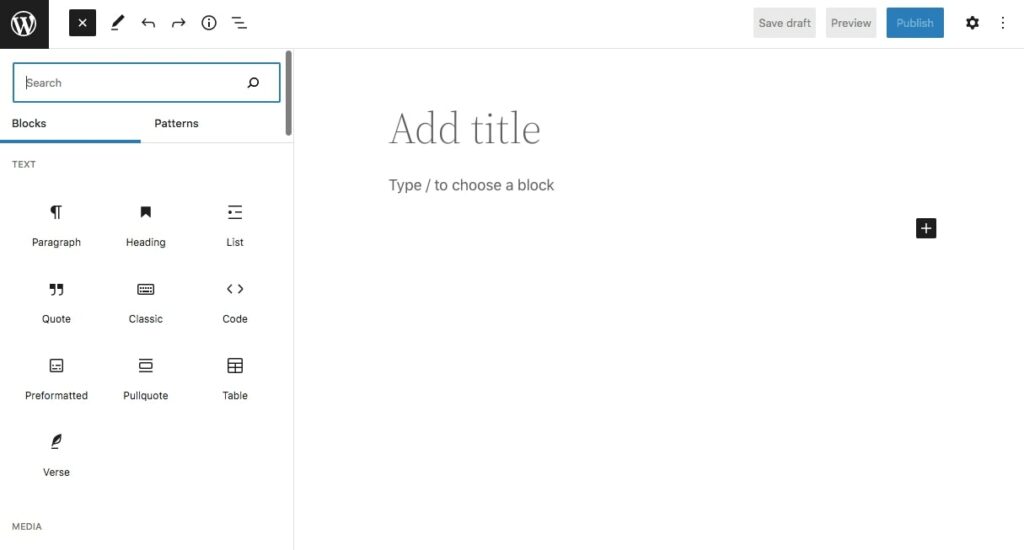
You can even use the pre-designed Block Patterns to automatically create a new layout — and if you work with an AI writing assistant, it can draft page copy or scaffold a block layout for you to refine. Once you’ve made your changes, you can publish the page or save it as a draft to continue working on it later.
Using a block theme? You can also create, edit, and trash pages straight from the Site Editor (Appearance > Editor > Pages), where you can see your page content inside your site’s template as you work.
Changing a page’s URL (slug)
WordPress builds each page’s URL from its title, but you can change it. In the editor, open the page settings sidebar and edit the slug under the link settings. Or, from the Pages screen, hover over the page, click Quick Edit, and update the Slug field. Keep slugs short and descriptive.
Organizing your WordPress pages
Depending on your theme’s menu setup, a new page may appear in your navigation automatically — otherwise, you can add it to your site’s navigation menu yourself (more on that in a moment). In a default page menu, WordPress orders pages by their Order value in the Page Attributes settings, then alphabetically by title. To control the sequence, set those Order values or organize your pages into a hierarchy.
First, click on Pages within WordPress:
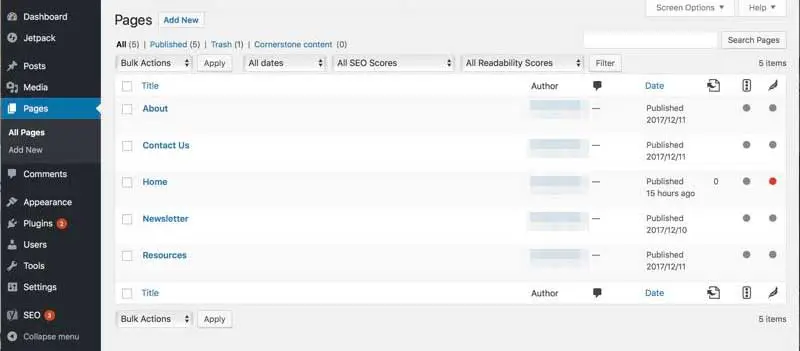
Here, you will see a list of all of the pages you’ve created so far. Hover over any page you want and click on Quick Edit:
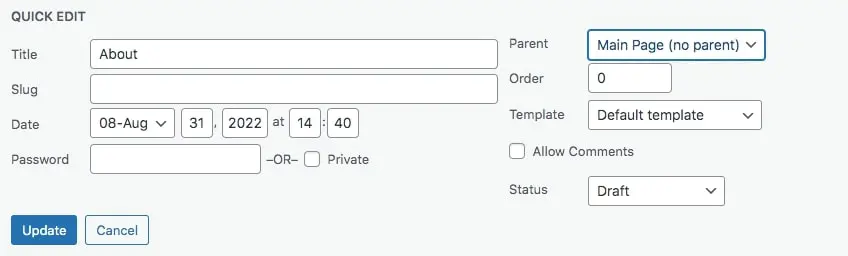
Then, find the drop-down menu for Parent. Both Parent and Order live in the page’s Page Attributes settings, which appear in Quick Edit and in the editor’s sidebar panel. If you want to make this page a subpage (or child) of one of your other pages, you can do that here. Say you run a bakery site: a Menu parent page could hold Cakes and Catering subpages, and child page permalinks nest under the parent’s slug, so Cakes would live at yoursite.com/menu/cakes.
Otherwise, you can simply use the Order box to determine how your pages will appear in a default page menu (custom menus and Navigation block menus are ordered where you manage the menu itself). If you leave the number at 0, for example, the selected page will be the first one in the hierarchy. If all pages are set at 0, they will be organized alphabetically.
Once you click on Update, all your settings will be saved. You’ll want to do this for each page on your site. If you add new pages later, you can follow the same steps to organize them within your existing hierarchy.
Adding a page to your navigation menu
Publishing a page doesn’t guarantee anyone can find it. Until a menu, link, or homepage points to it, the page just sits at its URL waiting for visitors who never arrive. How you add it to your navigation depends on your theme:
- Block themes (WordPress 6.0 and later): Navigation is managed with the Navigation block. Open the Site Editor, select your header’s Navigation block, and add a link to your new page.
- Classic themes: Go to Appearance > Menus, find the Pages pane, check the box next to your page, click Add to Menu, and then click Save Menu.
It also helps to link to the new page from other posts and pages on your site.
Setting a page as your homepage
By default, WordPress displays your latest posts on the front page. To use a page instead, go to Settings > Reading, choose A static page, and select your page from the Home page drop-down. You can also assign a second page as your Posts page to display your latest posts — the two can’t be the same page.
Removing a WordPress page
Deleting a page is a very straightforward process, but pause before you do it: once a page is gone, its URL returns a 404, and any menu items or internal links pointing to it will break. Update or remove those links first, and if the page earns traffic from search, set up a redirect to the closest replacement page. Then, to delete a page, go to the Pages screen of your dashboard. Hover over the page you want to delete, and you’ll see the word Trash in red lettering:
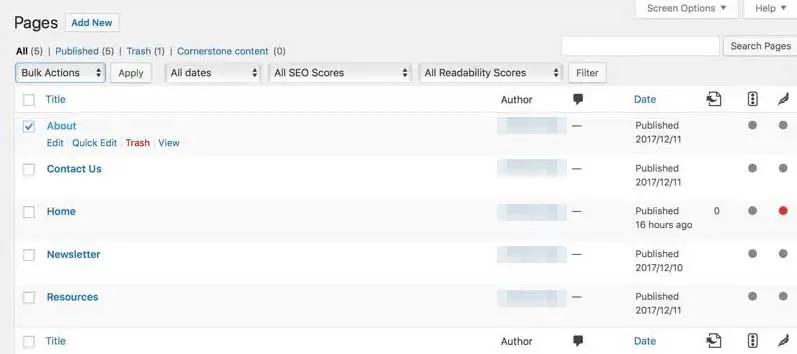
Once you click on that button, the page will be moved to your trash bin. If you need to delete multiple pages, you can select the checkbox to the left of each one. Then, go to the Bulk Actions menu just above the list of pages, and select Move to Trash.
Deleted pages can be restored by clicking on the Trash link above the page listing. Hover over the page you want and select Restore. If you’d like to remove the page for good, click on the red Delete Permanently link.
Create your first WordPress page
WordPress enables you to quickly add, edit, and organize pages on your website. These pages are primarily used for static content and can be organized hierarchically as part of your site’s overall architecture.
To get started, you’ll need to add a new page and customize it with blocks. For example, you might add text, images, buttons, and more. When you’re ready, you can publish the page or save it as a draft.
FAQs about WordPress pages
What’s the difference between a page and a post in WordPress?
Pages hold timeless content like About or Contact and sit outside your blog’s chronology. Posts are dated entries that appear in reverse chronological order, use categories and tags, and show up in your RSS feed. Pages can also nest into parent/child hierarchies — posts can’t.
What are page attributes in WordPress?
Page Attributes are the settings that control a page’s place in your site’s structure: Parent (which page it nests under) and Order (its position in a default page menu). You’ll find them in the editor’s sidebar and in Quick Edit on the Pages screen.
Do WordPress pages allow comments?
Not by default. Since WordPress 4.3 (2015), every new page is created with comments turned off, keeping discussion on your blog posts. You can switch comments on for an individual page in its discussion settings.
How many pages can a WordPress site have?
As many as you need — WordPress doesn’t set a limit. The practical ceiling is navigability, not software: once you pass a dozen or so pages, group them under parent pages so your menu stays scannable.
Can a WordPress page be my homepage?
Yes. Go to Settings > Reading, select A static page, and choose the page you want as your homepage. You can assign a different page to display your latest posts; the two can’t be the same page.

Do More with DreamPress
Every DreamPress plan includes fully managed performance, Bunny CDN, 1-click staging, daily backups, unmetered bandwidth, and 24/7 support from WordPress experts.
Check Out PlansDid you enjoy this article?