What is a Scheduled Post?
A scheduled post is a WordPress post or page set to publish automatically at a future date and time instead of immediately. WordPress stores it with the Scheduled (future) status, and its built-in scheduler, WP-Cron, publishes the post the next time it runs at or after that moment, so exact timing isn’t guaranteed by WP-Cron alone.
More About Scheduled Posts
How to schedule a post in WordPress
You schedule a post from the editor's Publish setting: pick a future date and time, and WordPress takes it from there. Here's the sequence in the Block Editor:
- Create a new post and add your content, or open an existing draft.
- Click the gear icon at the top right of the screen to open the settings sidebar, and make sure the Post tab is selected.
- Select Immediately next to Publish. A pop-over opens with a calendar and clock where you choose the date and time to publish the post.
- Click the Schedule button at the top of the screen, then confirm by clicking Schedule again when WordPress asks if you're ready.
These steps use the Block Editor. The Classic Editor has the same option under Publish > Publish immediately > Edit, and our guide How to Schedule Posts in WordPress covers both plus a third, plugin-based method.
How WordPress publishes scheduled posts
WordPress saves a scheduled post with the Scheduled post status (stored internally as future) and hands the publish job to WP-Cron, its built-in task scheduler. Per the WordPress developer handbook, WP-Cron checks its list of scheduled tasks on every page load and runs whatever is due, so your post goes live the first time someone loads the site at or after the scheduled minute.
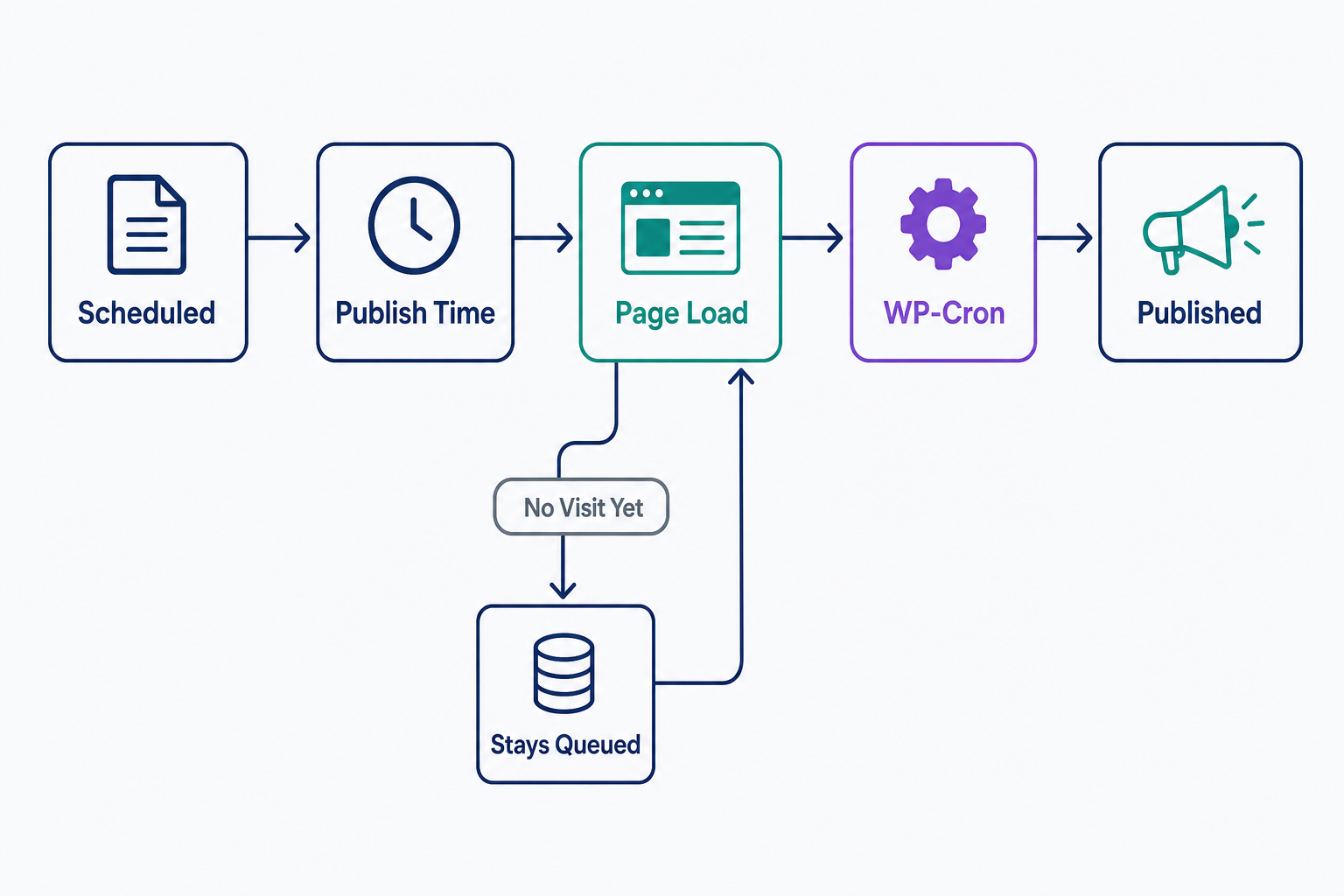
That page-load trigger is a deliberate trade-off: WordPress can't count on every host offering access to the server's own scheduler, so it simulates one. A task that misses its moment isn't lost. It stays queued and runs on the next visit, which means a scheduled post can publish late but won't disappear.
The missed schedule error
Missed schedule is the label WordPress gives a post whose publish time passed without WP-Cron firing. On a quiet site there may simply be no visit at the right moment; the developer handbook's example is a task set for 2:00 p.m. with no page load until 5:00 p.m. Downtime has the same effect, caching plugins can interfere with WP-Cron, and a wrong site timezone is the other common culprit.
Work through the fixes in that order: confirm the timezone in Settings > General, clear your cache, and if exact timing matters, hook WP-Cron into your server's real cron scheduler so it runs on a fixed clock instead of waiting for traffic. Our guide How to Fix the Missed Scheduled Post Error in WordPress walks through the troubleshooting in detail.
Scheduled post vs. draft
A scheduled post and a draft are both unpublished. The difference is what happens next:
- A draft waits for you. It stays unpublished until you press Publish, no matter how long that takes.
- A scheduled post waits for the clock. It carries a publish date and time, and WordPress publishes it with no further action from you.
Keep a post as a draft while it still needs work, and schedule it only once it's ready to go out unattended. Whatever the post contains at its publish time is exactly what readers see.
When to schedule a post
Schedule a post whenever the best publish time isn't the time you're writing. Common cases: reaching readers at their peak hours when they live in another timezone, holding a steady cadence through vacations and launch weeks, and batching a week of writing into one sitting.
The decision rule is simple. If your site gets steady traffic, build your content calendar in WordPress and trust the scheduler. If traffic is thin, set up a real server cron job first, then schedule freely.
Frequently Asked Questions
- The site timezone set in Settings > General, not your device's clock. If that setting is wrong, posts go live at the wrong hour, so confirm it before you schedule anything. It's also the first thing to check when a post misses its schedule.
- Yes. The post stays in your Posts list until publish time. Open it to change the date or content, publish it immediately, or click Switch to draft to unschedule it. Nothing is locked in until the scheduled time passes.
- Yes. Pages have the same Publish setting, and a custom post type gets its own tab in the same settings sidebar, though its options can vary. Backdating works too: a backdated post usually appears chronologically at the older date; pages and custom types may behave differently.
- Open your Posts list in the dashboard: a scheduled post shows the word Scheduled next to its title. If you can't spot one, use the search bar and filters at the top of the list.
Powerful WordPress Hosting
Reliable, lightning-fast hosting solutions specifically optimized for WordPress. Find the perfect plan for you by clicking below.
WordPress Hosting Plans