What Is the WordPress Media Library?
The WordPress Media Library is the section of the WordPress admin dashboard that stores and displays every media file uploaded through WordPress, including images, videos, audio, and documents. From the Media Library you can upload new files and search, preview, edit, or delete existing ones.
More About the Media Library
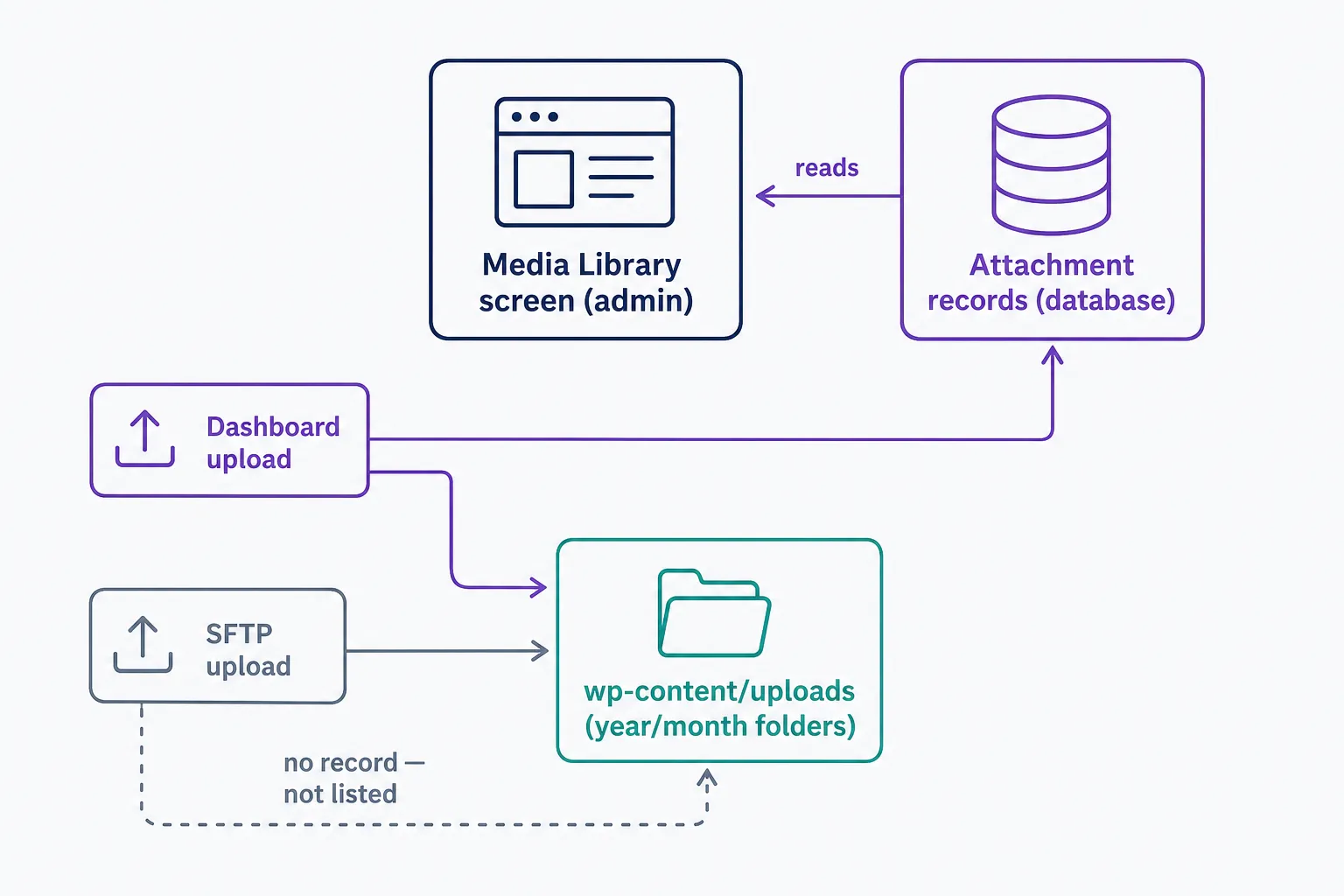
WordPress organizes every media file you upload through the dashboard or editor into the Media Library, a section of the WordPress admin that lists every file registered on your site in one place. Files copied straight to the server over SFTP aren't listed until you import them into the library.
The library previews images, video, and audio right in the admin. Documents such as .doc and .ppt files display as a generic icon instead. PDFs are the exception: since WordPress 4.7 (December 2016), the library shows a preview image of a PDF's first page on servers with Imagick and Ghostscript support.
You can display files in a grid or a list, and in grid view the search box narrows results as you type. Two dropdown filters help you dig: media type (images, audio, or video) and upload date. The type filter also includes an Unattached option, which lists files that aren't tied to a parent post or page.
Uploading files and supported types
To add files, go to Media > Add New in the admin sidebar, then drag and drop them onto the upload area or click Select Files. Anything you insert while editing a post or page lands in the library automatically. Our uploads (attachments) entry covers the upload mechanics in more depth.
By default, WordPress accepts images (.jpg, .png, .gif, .webp), audio (.mp3, .m4a, .ogg, .wav), video (.mp4, .mov, .mpg, .ogv), and documents (.pdf, .doc, .docx, .ppt, .pptx, .xls, .xlsx, .odt, .zip). Upload anything else and WordPress rejects it with the error "Sorry, this file type is not permitted for security reasons." SVG files are blocked by default, and hosting providers or multisite network settings can restrict the list further.
Editing media in the library
How you edit depends on the view. In grid view, clicking a file opens the Attachment Details window, where any change saves automatically. In list view, clicking a file's name opens the Edit Media screen instead, and edits there only stick after you click Update. On either screen you can edit the file's alt text, title, caption, and description, and copy the file's URL to your clipboard. For images, the Edit Image button adds crop, rotate, and scale tools, so quick fixes don't need a separate photo editor.
Where WordPress stores media files
The files themselves live in the wp-content/uploads folder on your server, sorted into year and month subfolders by default. The library is the index: each upload is registered as an attachment in the WordPress database, and that record is what the admin screens read. WordPress also generates several image sizes for every image you upload, so your theme can serve a copy that fits the layout.
Media Library vs. gallery
The names sound alike, but they do different jobs:
- Media Library: site-wide storage and management for every file uploaded to your site. It lives in the admin, and visitors never see it directly.
- Gallery: a block that displays a chosen set of images inside a single post or page.
The library stores; the gallery shows.
Deleting files safely
Deleting from the Media Library is permanent: WordPress doesn't move media to a trash bin by default, so there's no undo, and any post or page still using the file shows a broken image afterward. The Uploaded to field in Attachment Details and the Unattached filter are useful starting points, but neither is a complete usage check. Both only track a file's parent post, so an unattached file can still appear in a template, widget, custom field, or through its direct URL. Back up your site, then search your content for the file name (or run a media-usage audit with a plugin) before deleting.
For a full walkthrough of uploading, editing, and organizing files, see our guide, Decoding WordPress: The Media Library.
Frequently Asked Questions
- The cap is set by your hosting provider's server configuration, not by WordPress. Your current limit appears at the bottom of the Media > Add New screen. If a file exceeds it, compress or resize the file, or ask your host to raise the limit.
- No. WordPress has no native media folders; search plus the type, date, and Unattached filters are the built-in organization. If you want drag-and-drop folders, a folder-management plugin from the WordPress.org directory adds that capability.
- Because the library only lists files registered in the WordPress database, and FTP uploads skip that step. A free plugin such as Media Sync scans wp-content/uploads and registers the files it finds, which adds them to the library.
Powerful WordPress Hosting
Reliable, lightning-fast hosting solutions specifically optimized for WordPress. Find the perfect plan for you by clicking below.
WordPress Hosting Plans