What is Google Search Console?
Google Search Console is Google’s free tool for monitoring how a website appears and performs in Google Search. It shows which queries display the site and how often searchers click, flags indexing, spam, and security issues, and lets verified owners submit sitemaps and request re-indexing of updated pages.
More About Google Search Console
You don’t need Google Search Console for your site to appear in Google results, but it’s the only place Google reports directly on how your site is doing there. To use it, you add your website as a property and prove you own it. For a full setup walkthrough, read our guide to Google Search Console.
Property types and verification
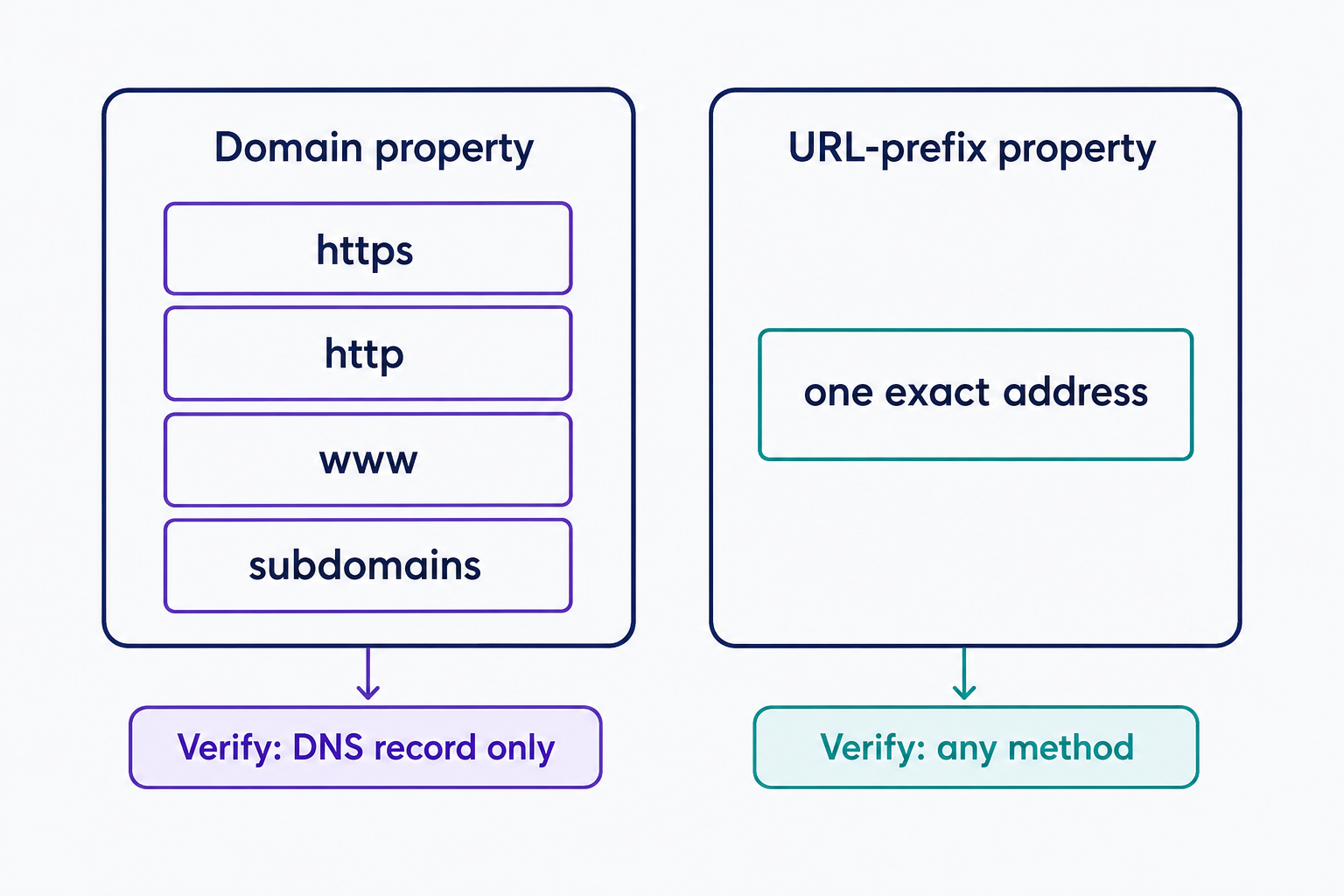
Search Console offers two property types, and the choice decides how you verify. A Domain property covers every subdomain and protocol variant of your site (http, https, www, and any others) but can only be verified through your domain name (DNS) provider. A URL-prefix property covers one exact address and accepts any of Google’s six verification methods:
- HTML file upload: publish a small file Google gives you at a specific URL on your site.
- HTML tag: paste a meta tag into your homepage’s source code.
- Google Analytics tracking code: quick if the page already carries an Analytics tag you control.
- Google Tag Manager snippet: the same shortcut, using an existing Tag Manager container.
- Google Sites or Blogger account: sites on these platforms verify with the method Google recommends for each.
- Domain name provider: add a DNS record. This is the only method that works for a Domain property.
If your site runs on a platform like WordPress, check its documentation before picking a method: your host or SEO plugin may offer a setting that verifies the property for you. And add the property sooner rather than later. Search Console starts collecting data as soon as a property is added, even before verification, though it takes a few days for data to start accruing.
Key reports and tools
Once verified, five surfaces do most of the day-to-day work:
- Performance report: clicks, impressions, click-through rate (CTR), and average position in search results, grouped by query, page, country, or device. The default view shows the past 3 months of search traffic.
- URL Inspection tool: crawl, indexing, and serving details for a single URL, pulled straight from the Google index.
- Sitemaps and indexing: submit an XML sitemap, see which pages Google has indexed, and request re-indexing of new or updated content.
- Core Web Vitals report: shows how your pages score on Google’s loading, interactivity, and visual-stability metrics.
- Alerts and links: email notifications when Google finds indexing, spam, or security issues on your site, plus a report of which sites link to yours.
Here’s a worked example of what that data is for: open the Performance report’s Queries tab and look for queries with high impressions but a low CTR. Those are searches where Google shows your page and people scroll past it. Rewriting those pages’ title tags is one of the fastest SEO wins available, and you can watch the CTR respond in the same report.
Google Search Console vs. Google Analytics
The two tools answer different questions, and most sites want both:
- Google Search Console reports how your site appears and performs in Google Search before the visit: queries, impressions, clicks, average position, and indexing status.
- Google Analytics tracks what visitors do on your site after they arrive, through a tag installed on every page, and it counts traffic from every source, not just Google.
Don’t expect their numbers to match. They measure different things with different methods, so a gap between Search Console clicks and Analytics sessions is normal, not a bug.
Verification is free and takes minutes, so set Search Console up before you need it. Data collection only starts once the property is added, and the alerts mean you hear about indexing or security problems from Google instead of from a customer. Verify your site today, then submit your XML sitemap as the first job in your new dashboard.
Frequently Asked Questions
- Search Console starts collecting data as soon as the property is added, even before verification, but it takes a few days for data to start accruing. The newest Performance data is preliminary and can still change; the report’s default view covers the past 3 months.
- Verification lasts as long as Google can confirm your verification token is present and valid. Search Console re-checks periodically and notifies you if the check fails; if it isn’t fixed, your permissions expire after a grace period. Don’t delete the tag, file, or DNS record after verifying.
- Yes. Multiple people can verify ownership of the same property, using the same or different methods. Adding a second verification method of your own is also a safeguard in case one fails, such as a template change that drops the Google Analytics tag you verified with.
Professional SEO Services
Our Pro Services team will help you rank higher and get found online. Let us take the guesswork out of growing your website traffic with SEO.
SEO Services