
Want to change your WordPress homepage (also called the front page)? Go to Settings > Reading in your dashboard and choose whether it displays your latest posts or a static page you pick. That single setting does the job. Below, we’ll walk through it step by step, plus two more ways to customize what visitors see first. It’s worth the effort: your front page is the first thing most visitors will see when they land on your site, so it’s vital for making a good first impression.
While your front page will normally display your latest posts, you may want something more customized to help your most important content stand out. Fortunately, there are lots of options available on the WordPress platform.
What is the WordPress Homepage (Front Page)?
Your front page is the homepage of your WordPress site. By default, it displays your blog posts, starting with the most recent entries. WordPress enables you to set the number of posts displayed and even include teasers for other posts (depending on your theme’s options).
Fortunately, WordPress enables you to select any page to use as your front page. This means that you can use either a static page or a customized page. The latter option is particularly interesting since it enables you to stand out from other sites that use the same theme.
The benefits of a customized front page include the ability to:
- Optimize your static content.
- Better showcase what your site is about — its mission, distinguishing features, core values, etc.
- Add multiple strong Calls to Action (CTAs) that are highly visible.
Customizing your WordPress front page enables you to fine-tune its look so that it meets your requirements. It can also give you an important edge over other websites with similar subject matter. Let’s take a look at a few ways to customize your front page in WordPress.
How to Change Your WordPress Homepage (Front Page): 3 Ways
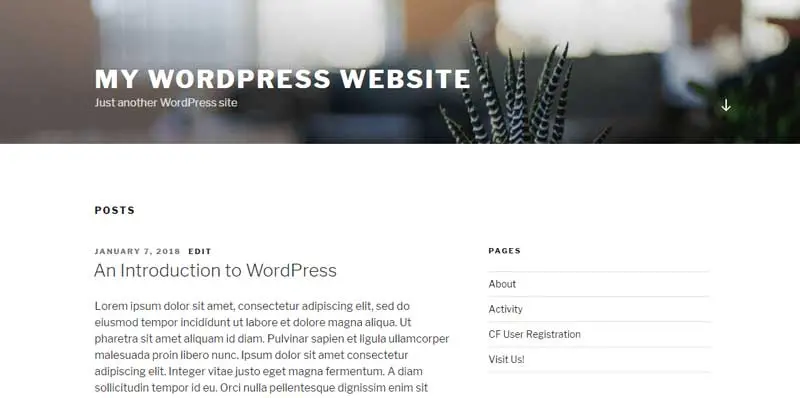
Before implementing any of these methods, it’s important to first back up your site. This will ensure that you can easily roll back changes you don’t like.
1. How to Set Your Homepage in WordPress (Posts or a Static Page)
To set your homepage in WordPress, go to your dashboard and select Settings > Reading. Here, you can choose whether your homepage displays your latest posts or static content:
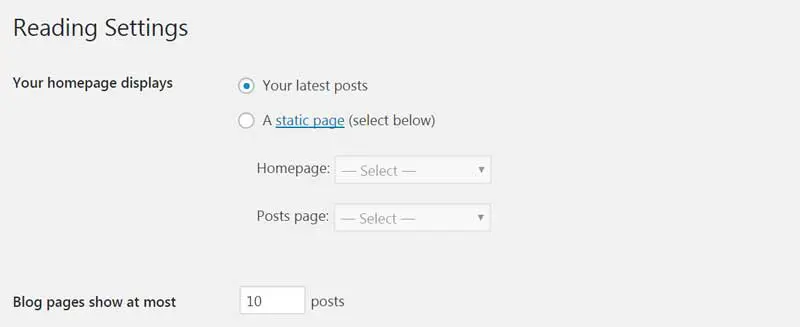
If you run a blog, you may want to prioritize your recent posts. For this option, you can change the value in the Blog pages show at most field. This will set a maximum number of displayed posts.
If you select a static page instead, you can decide which page to use:
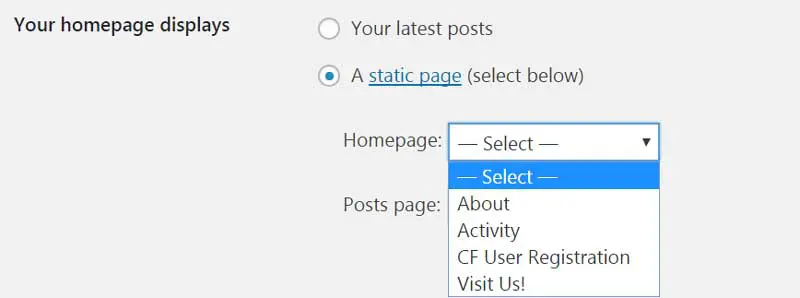
You can also choose which alternative page will display your blog posts. Keep in mind that you’ll need to have these pages already created before you can select them.
2. How to Edit Your Static Front Page in the Block Editor
After you set a specific page as your static homepage, open that page in the Block Editor:
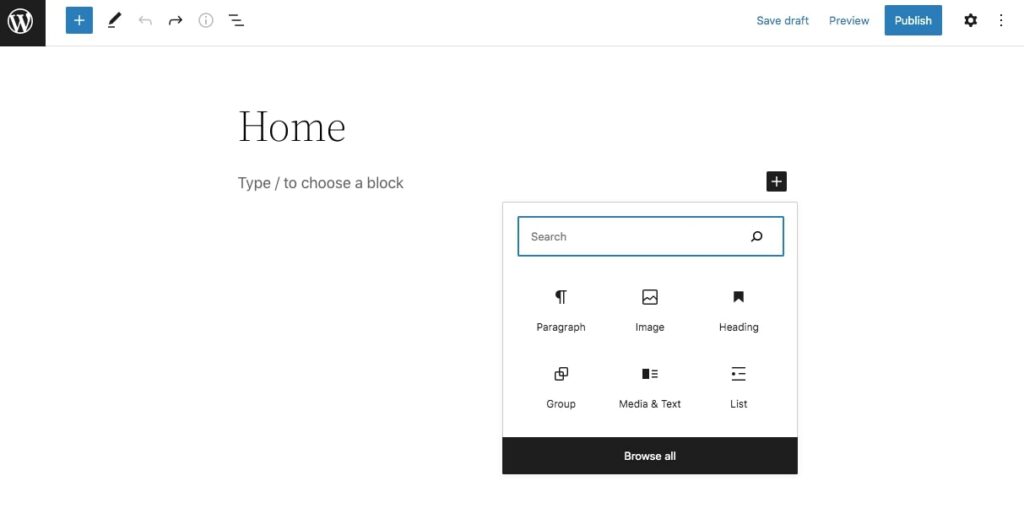
To customize the page from scratch, you can insert new content blocks. Simply select the + icon and search for the feature you need.
WordPress has a variety of blocks to choose from. You can insert standard options such as paragraphs, images, lists, tables, and buttons. Additionally, you’ll be able to use theme blocks:
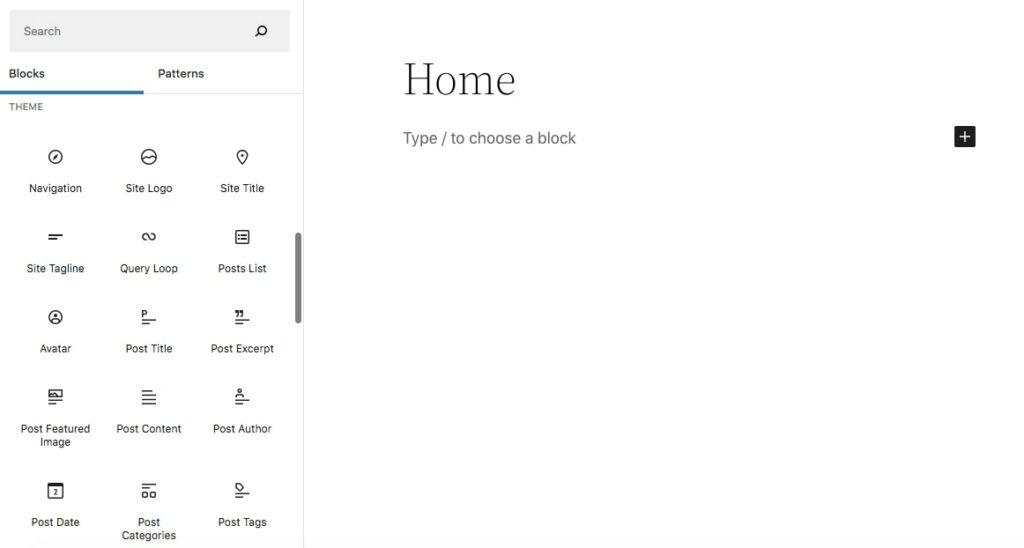
To save time, you can also use pre-designed Block Patterns. You can find layouts for your headers, footers, featured posts, photo galleries, and much more:
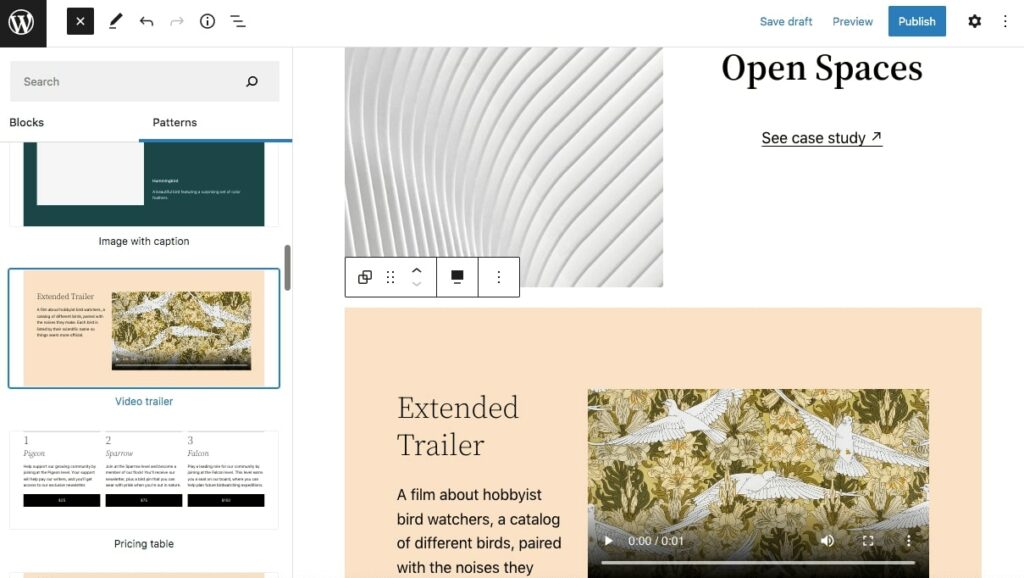
After adding all the elements you need on your static front page, you can publish it! Alternatively, you can save it as a draft to continue editing later. And if you’d rather not start from a blank page, an AI website builder can generate a starting homepage layout for you to refine with blocks and patterns.
3. Create a Custom WordPress Page Template
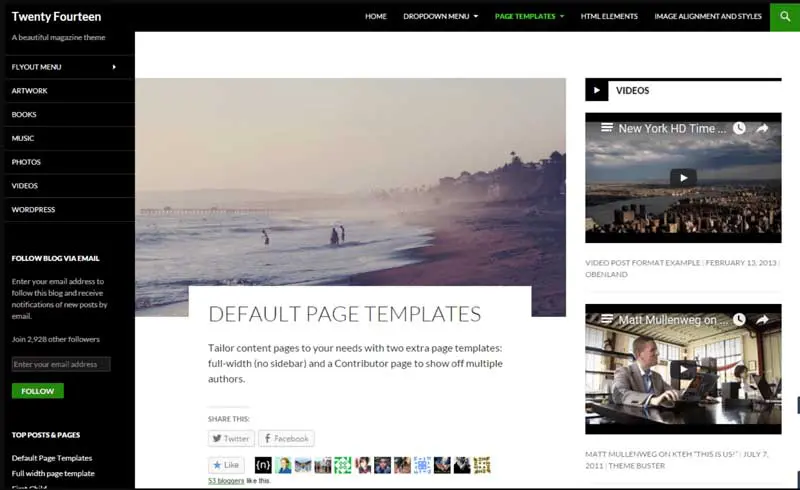
You can also customize your front page in WordPress by creating a custom page template. First, you’ll need to make sure you have a block theme activated on your website. This will support Full Site Editing.
To find a block theme, open your dashboard and go to Appearance > Themes > Add New. Then, select the Block Themes filter to browse the available block themes.
After you apply the filter, install and activate a block theme that best suits your needs. For this tutorial, we’ll be using Twenty Twenty-Five, the current default WordPress theme.
Most block themes will automatically generate some default page templates for your website. To view these, go to Appearance > Editor. In the Site Editor’s navigation sidebar, select Templates:
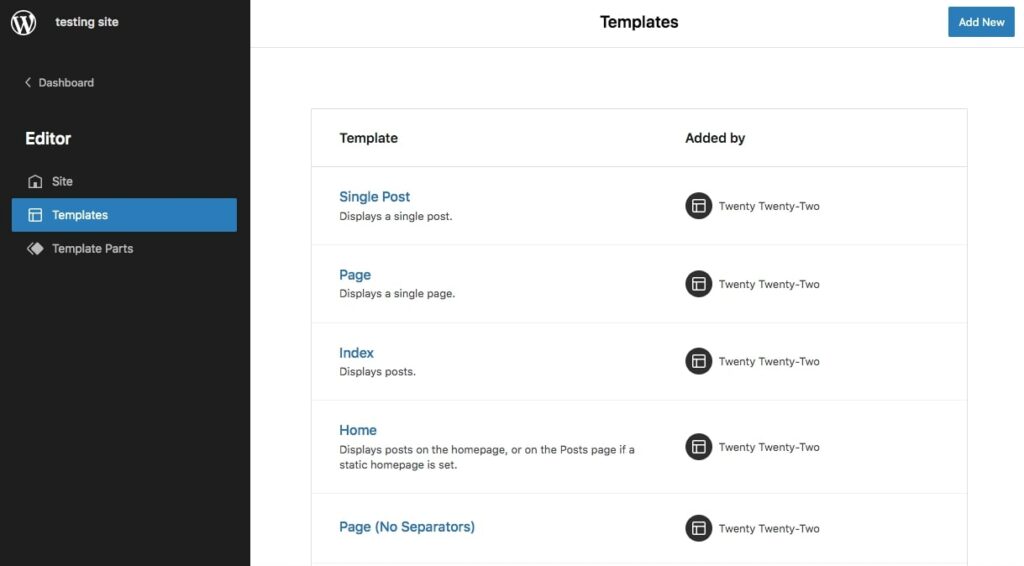
Here, you’ll see a list of pre-designed page templates that come with your theme. In many cases, you’ll have a Front Page or Blog Home template. You can select one to open a preview in the Site Editor:
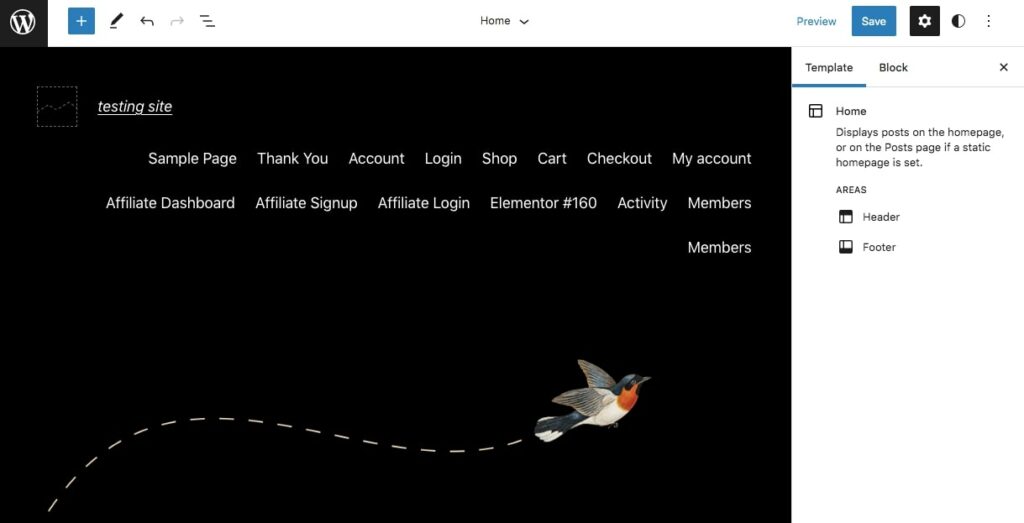
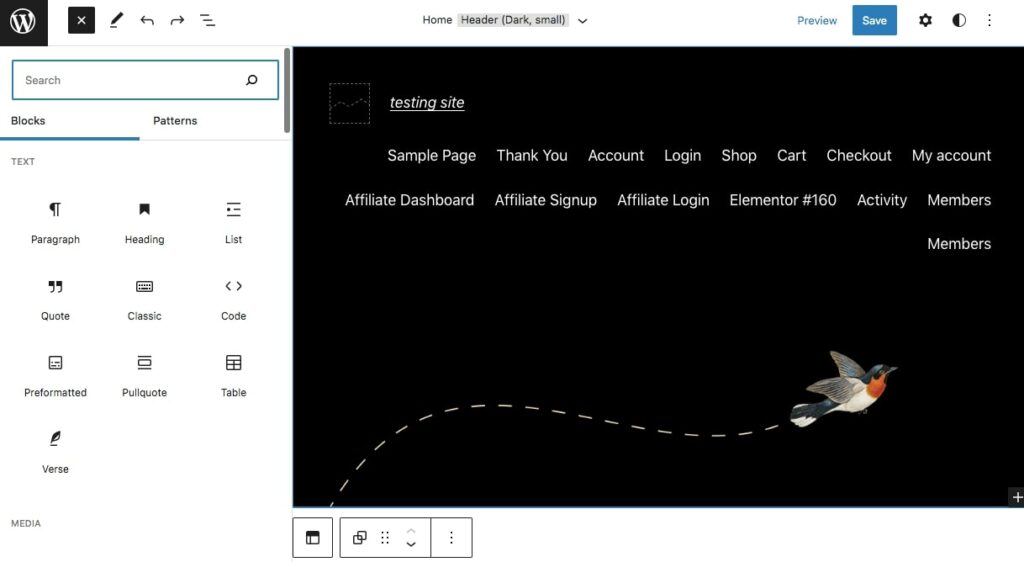
By clicking on the + button, you can insert new blocks into the template. You can add standard text and media blocks, widgets, design elements, and theme blocks. However, keep in mind that this will affect all pages that use this template:
If you don’t already have a homepage template, you can easily create one. First, open a new post or page. In the page settings on the right, find the Template section:
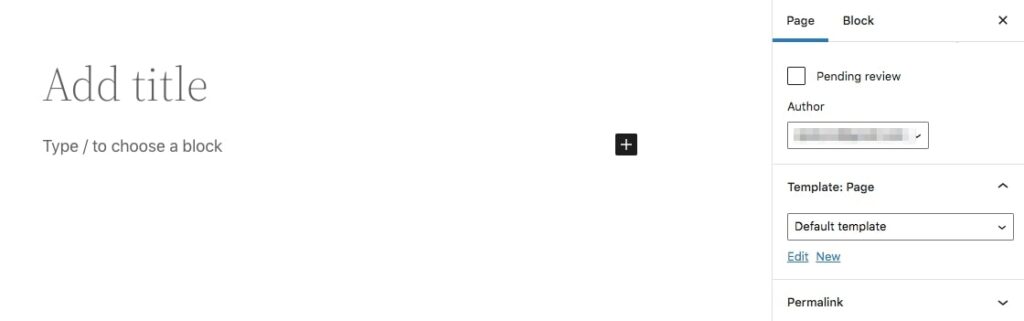
Next, click the name of the template. In the popup that appears, you can create a new custom template and give it a name:
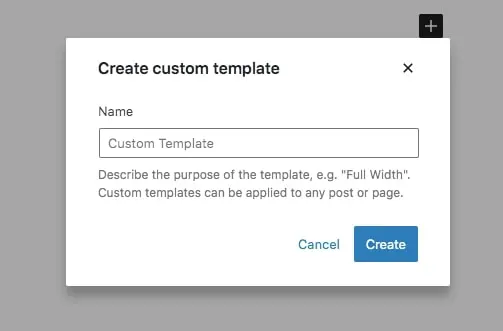
This will automatically open the Template Editor. You can now build your custom template using blocks, patterns, and even template parts:
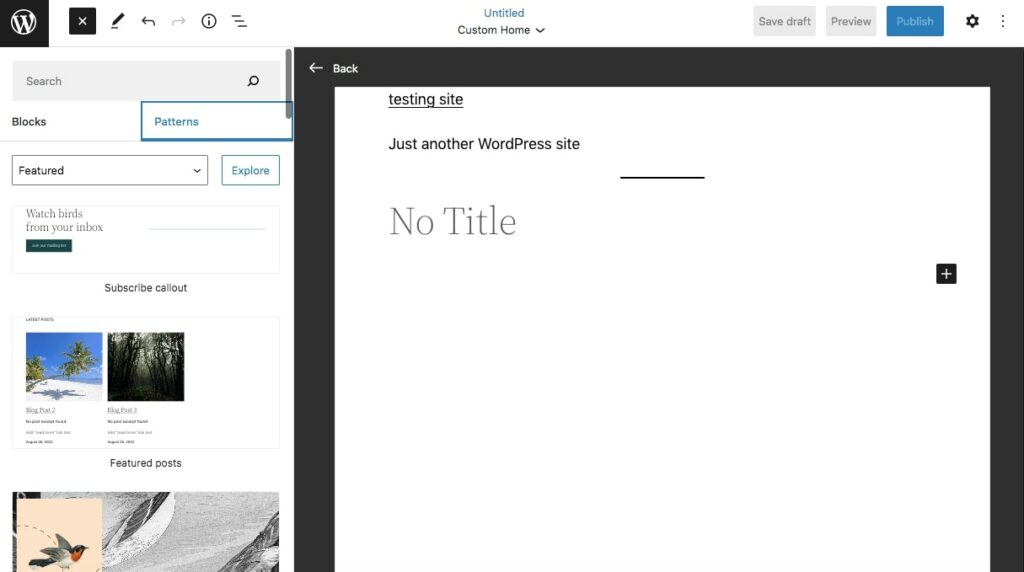
After you’ve made your changes, hit Publish. If you want to assign your homepage to this template, open the Block Editor for the page:
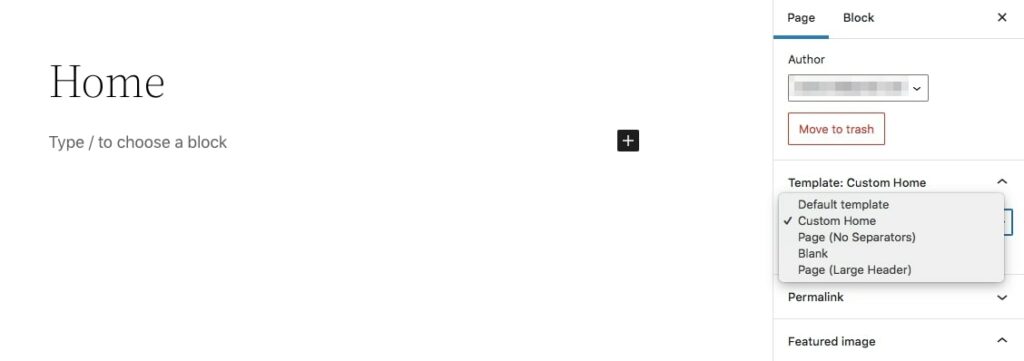
You should see your new template in the Template drop-down menu. Select it, and when you publish (or update) the page, your custom template will be applied.
WordPress Homepage FAQs
How Do I Change the Front Page in WordPress?
Go to Settings > Reading in your dashboard. Choose A static page and select the page you want to feature, or choose Your latest posts to display your blog. Save your changes, and your new front page goes live right away.
How Do I Create a Homepage in WordPress?
Go to Pages > Add New, title the page (something like “Home”), add your content, and publish it. Then head to Settings > Reading and select that page as your homepage.
Can I Show Only One Category on My WordPress Front Page?
Yes. Set a static page as your front page, then add a Query Loop block to it and filter that block by your chosen category. Only posts from that category will appear on your homepage.
How Do I Make WordPress Show My Latest Posts on the Homepage?
Select Your latest posts under Settings > Reading. The Blog pages show at most field controls how many posts appear on the page.
There’s No Place Like Your Homepage
Adding a custom homepage to your WordPress website has numerous benefits, including greater visual appeal and the ability to convey relevant information to visitors right away. Fortunately, WordPress is flexible enough to enable you to customize your front page in almost any way you need.

Do More with DreamPress
Every DreamPress plan includes 1-click staging, a free Bunny CDN, daily backups, and 24/7 support from in-house WordPress experts.
Check Out PlansDid you enjoy this article?